Xiaomi FRP (Factory Reset Protection) is one of the most common locks technicians run into after a factory reset. This process clears FRP and performs a factory reset on the device at the same time — in one pass.
What You'll Need
Before you start, make sure you have:
- The device connected to your PC
- SoulAuth's FRP tool (or Multi Tool)
Step-by-Step: Xiaomi FRP Remove
Step 1: Put the device into Mi Assistant Mode
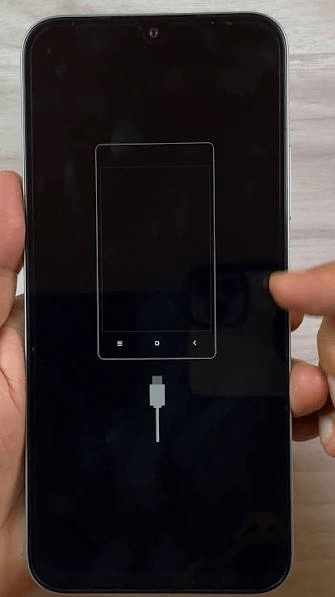
Step 2: Open the FRP tab in the FRP Tool or Multi Tool
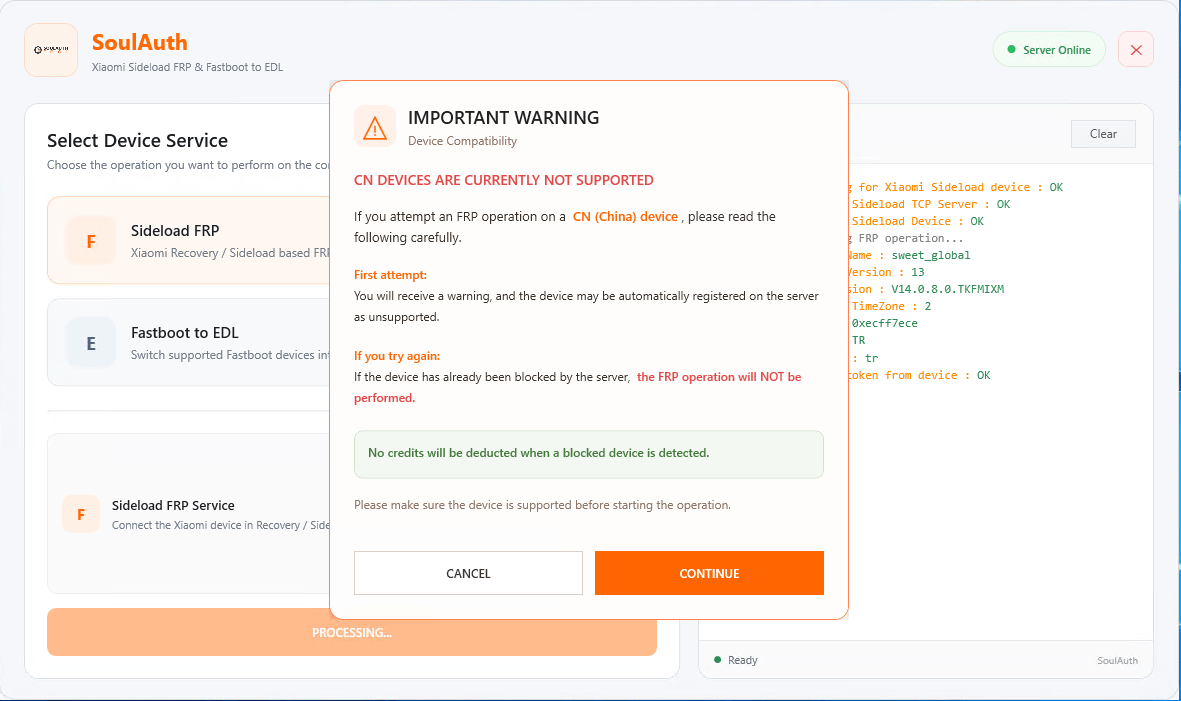
Step 3: Start the process
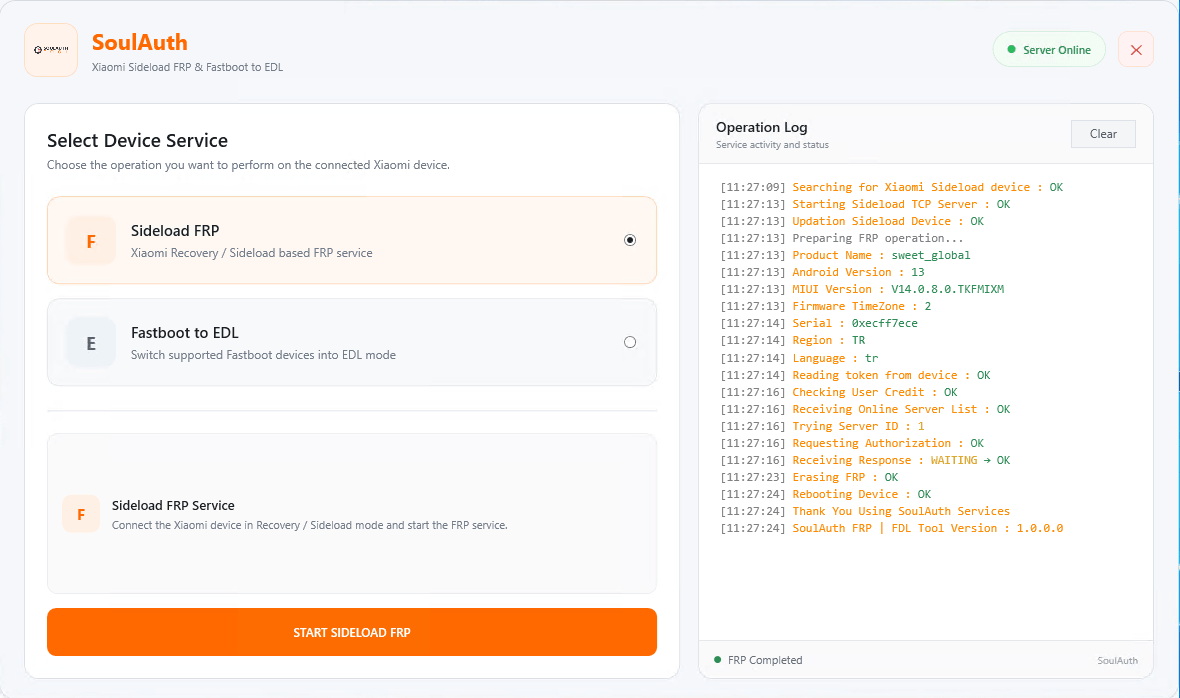
After the Reboot
This process performs a full factory reset in addition to clearing FRP. All data currently on the device will be erased — make sure anything important is backed up first.
Once the device restarts, both the factory reset and FRP removal are already done — the device boots straight into setup with no Google account lock.
No manual Google sign-in is needed afterward — the device goes straight into normal setup.
Need Help?
If you run into any issues during the process, you can exchange ideas and get support from other users in the Community Chat section on our website.
Need this done on a real device right now?
Run it through SoulAuth's tools — no manual exploits, no guesswork.
View Services